Qvidian for Microsoft Outlook
Qvidian for Outlook allows users to access trusted, approved content directly within Outlook when composing or responding to emails. This content can be inserted, attached, copied/pasted, downloaded, and/or added to emails and meeting requests as links. AI Assist integrates with Qvidian for Outlook to write custom answers to questions and revise text. FirstPass functionality is currently NOT available in Qvidian for Outlook.
Installing Qvidian for Outlook
Your Microsoft 365 Administrator will need to install either the Qvidian for Microsoft Outlook US or EU application depending on where your company's Qvidian instance is located. Once installed, your administrator will need to use centralized loading to deploy Qvidian for Microsoft Outlook to all client machines. If your company uses SSO, see SSO Central Loading of Qvidian for Outlook.
Tip: For more information on centralized deployment, please see Publish Office Add-ins using Centralized Deployment via the Microsoft 365 admin center and/or contact Qvidian support.
- Navigate to the Microsoft 365 App Store.
- If one of the following scenarios applies to you, please install the Qvidian for Microsoft Outlook (US) application:
- You are located in the US.
- You are located in the EU, but your Qvidian instance is located on a US server.
- If one of the following scenarios applies to you, please install the Qvidian for Microsoft Outlook (EU) application:
- You are located in the EU.
- You are NOT located in the EU, but your Qvidian instance is located on an EU server.
Note: Depending on the Outlook version, the installation process will vary. Please visit Microsoft Support for more information on how to install and use add-ins in Outlook.
Tip: Click the app icon to open the overview dialog and confirm that the correct app (e.g. US vs EU) has been selected before clicking Add.
 SSO Central Loading of Qvidian for Outlook
SSO customers can modify their XML to use central loading.
- Click the Profile menu
 icon (your first and last initial in a white circle) found in the header of your Qvidian instance.
 - Select About from the Profile menu. The "About" dialog will display.
- Copy your Subscriber ID.
- Open the
QvidianOutlook-US.xmlorQvidianOutlook-EU.xml, depending on your Qvidian subscriber server location, with Notepad. - In Notepad, use CTRL+F to search:
Upland.QLaunch.URLin the XML file. - Move your cursor to the end of the
Upland.QLaunch.URLbetween theEnvironmentdefinition and the quotation"mark. - Append the
Environment=USorEnvironment=EUdefinition with&SubscriberID=and paste the Subscriber ID that was copied in the About dialog. - Save the XML file and give it to your organization's Microsoft Office 365 administrator so they can upload the file for deployment.
Example: In the image below the server is located in the US, so the XML reads: Environment=US .

Example: The image below is an example of the appended XML code format.

Accessing Qvidian for Outlook
- Go the Outlook ribbon or navigation bar and click the More Apps icon.
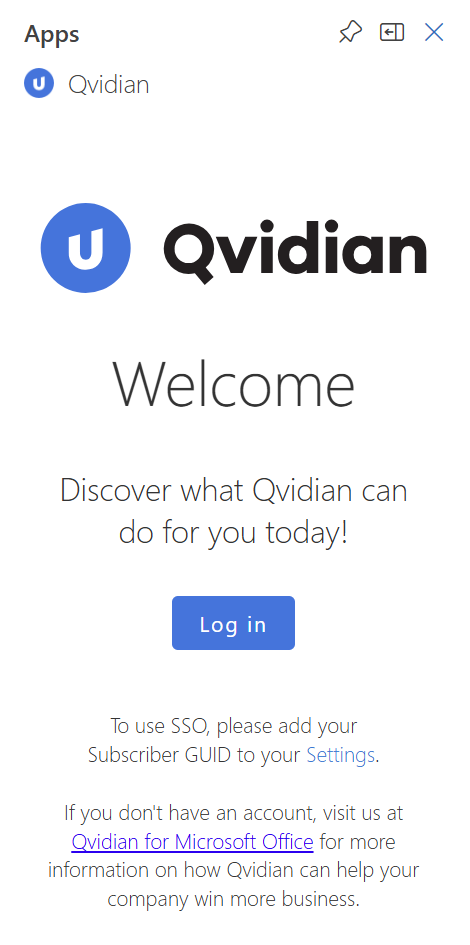
- Depending on which app was installed, click either the Qvidian (US) or Qvidian (EU) app. The "Upland Qvidian Welcome" apps pane will appear.
- Click Log in. The "Upland Qvidian Log In" dialog appears.
- Enter your Upland Qvidian User Name and Password and click Log In.
Note: The "Allow user to log into Qvidian for Microsoft Office” permission must be enabled for Qvidian for Outlook to work.
Using the Qvidian for Outlook Pane
Expand the Qvidian for Outlook Pane
- Click the Expand Apps Pane
 icon.
icon. - Click the icon again to collapse the apps pane.
Pin the Qvidian for Outlook Pane
Pin the Qvidian for Office add-in to keep it open between sessions.
- Click the Pin Apps Pane
 icon.
icon. - Click the icon again to unpin the apps pane.
Updating Qvidian for Outlook Settings
- Click the Menu
 icon.
icon. - Select Settings from the dropdown menu.
- Specify your Subscriber GUID if you are using SSO. For users who install Qvidian for Outlook through their corporate portal (i.e., organizations using a centralized deployment of Qvidian for Outlook), admins can define a default subscriber ID for all users. Your Subscriber ID, which is entered into your Subscriber GUID field, can be found in the "About" area within the header of the Qvidian interface.
- Select the Turn on debugging mode checkbox to enable the debugging window. This setting is only used when you need to provide customer support with more information regarding an issue that you are experiencing.
- Select the Disable SSO authentication checkbox to turn off SSO and use an explicit login.
- Click Save.
Note: Qvidian will still remember your Subscriber ID even if you disable SSO functionality. This allows you to re-enable SSO later without looking up and re-entering your Subscriber ID.
Accessing Upland Assist
- Click the Menu icon.
- Select Help from the dropdown menu.
- To open the Help Center or Community in a new browser tab, elect the Help Center or Community links within the Resources section.
- To search directly in the Upland Assist dialog, enter your question or desired topic directly into the Find your answer search bar and click the Search
 icon. Search results will populate directly below in the Find your answer section.
 - Click the desired answer to learn more. Help Center topics will be identified with a Help Center topic
 icon. Community topics will be identified with a Community topic
  icon.
icon. - Click View More Results to see more answers.
- Click the Contact Support link if you need more help.
- Click the desired answer to learn more. Help Center topics will be identified with a Help Center topic
- Click X to close the Upland Assist dialog. Click the minimize icon to hide Upland Assist.
Logging out of Qvidian for Outlook
- Click the Menu icon.
- Select Logout from the dropdown menu.